2017年2月4日土曜日

[Pocket Note]How to add diagrams | 図形を追加する方法

今回はiPhone、iPad、Android向けメモ帳アプリ「Pocket Note」でメモに図形を追加する方法についてご紹介します。
I introduce how to add diagrams to notes on "Pocket Note", an notebook application for iPhone, iPad and Android.

Pocket Note


ツールバーの「図形」ボタンをタップします。
Tap the diagram button on Tool Bar.
Pocket Note 図形ボタン

その後、図形を貼り付けたい場所をタップします。
図形の種類を四角、三角、丸から選択します。
Tap place to add a diagram.
Select type of diagram(rectangle, triangle or circle).
Pocket Note 図形追加

図形の色を次の方法で設定することができます。
If you change diagrams color, do the following.

(1).図形をタップします
  Tap a diagram.

(2).黄色い枠が表示されると同時に操作ボタンが表示されます。
     Frame and operation buttons are displayed.

(3).「カラー設定」ボタンをタップすると、色の選択画面が表示されます。
       Tap the fill color button”, and the select color screen is displayed.
Pocket Note カラーボタン

Pocket Note カラー選択

(4).図形に設定したい色を選択します。
     Select color.

図形の色は次の方法で解除することができます。
If you clear diagram, do the following.

(1).図形をタップします
     Tap a diagram.

(2).黄色い枠が表示されると同時に操作ボタンが表示されます。
     Frame and operation buttons are displayed.

(3).「カラークリア」ボタンをタップすると、図形の色の選択が解除されます。
       Tap the clear color button.
Pocket Note カラークリア

図形の大きさを次の方法で変えることができます。
If you change width and height of a diagram, do the following.

(1).図形をタップします。
     Tap a diagram.

(2).黄色い枠が表示されると同時に操作ボタンが表示されます。
     Frame and operation buttons are displayed.

(3).操作ボタンの「横幅拡大」ボタンをタップすると、図形の幅が拡大します。
    Tap the width up button”, and width of a diagram become increasing.
Pocket Note 横幅拡大

(4).操作ボタンの「横幅縮小」ボタンをタップすると、図形の幅が縮小します。
     Tap the width down button”, and width of a diagram become decreasing.
Pocket Note 横幅縮小

(5).操作ボタンの「高さ拡大」ボタンをタップすると、図形の高さが拡大します。
      Tap the height up button”, and height of a diagram become increasing.
Pocket Note 高さ拡大


(6).操作ボタンの「高さ縮小」ボタンをタップすると、図形の高さが縮小します。
      Tap the height down button”, and height of a diagram become decreasing.
Pocket Note 高さ縮小


(7).操作ボタンの「スケール拡大」ボタンをタップすると、図形の幅と高さの比率を維持したまま幅と高さが拡大します。
    Tap the scale up button”, and width and height of a diagram become increasing.
Pocket Note スケール拡大


(8).操作ボタンの「スケール縮小」ボタンをタップすると、図形の幅と高さの比率を維持したまま幅と高さを縮小します。
      Tap the scale down button”, and width and height of a diagram become decreasing.
Pocket Note スケール縮小

また、ピンチ操作でも図形の縦と横の比率を維持して、幅と高さを変えることができます。
Also, when you pinch on a diagram, and width and height of a diagram changes.

図形は次の方法で場所を移動することができます。
If you move a diagram, do the following.

(1).図形をタップします
     Tap a diagram.

(2).黄色い枠が表示されたのを確認したら、ドラッグ操作で移動します。
      Drag a diagram after seeing that the frame of photo is displayed.
Pocket Note ドラッグ操作


図形が他の図形や文章、写真、線、地図と重なっている時は、次の方法で前面に出したり、背面に送ることができます。
If a diagram piles up other diagrams, sentence blocks, photos, lines, and map, do the following and you can move a diagram to the front or back.

(1).図形をタップすると黄色い枠が表示されると同時に操作ボタンが表示されます。
    Tap a diagram. Frame and operation buttons are displayed.

(2).操作ボタンの「前面へ移動」ボタンをタップすると選択している図形が前面に移動します。
     Tap to front button and a diagram moves to the front.
Pocket Note 前面へ移動

(3).操作ボタンの「背面へ移動」ボタンをタップすると選択している図形が背面に移動します。

     Tap to back button and a diagram moves to the back.
Pocket Note 背面へ移動

[関連記事(Articles)]


にほんブログ村 ライフスタイルブログ クリエイティブライフへ
にほんブログ村

クリエイティブライフ ブログランキングへ

2017年2月2日木曜日

[Pocket Note]How to add lines(線を追加する方法)

今回はiPhone、iPad、Android向けメモ帳アプリ「Pocket Note」において、メモに線を追加する方法についてご紹介します。
I introduce how to add lines to notes on "Pocket Note",a notebook application for iPhone, iPad and Android.


Pocket Note


ツールバーの「線」ボタンをタップします。
Tap the line button on Tool Bar.
Pocket Note

その後、線の起点となる場所をタップします。
Tap starting position of line.
Pocket Note


その後、線の終点となる場所をタップすると、線が表示されます。
Tap ending position of line.
Pocket Note

線の色を次の方法で変更することができます。
If you change lines color, do the following.

(1).線をタップします。
     Tap a line.

(2).黄色い枠が表示されると同時に操作ボタンが表示されます。
     Frame and operation buttons are displayed.

(3).「カラー設定」ボタンをタップすると、色の選択画面が表示されます。
       Tap the fill color button”, and the select color screen is displayed.
Pocket Note


(4).線に設定したい色を選択します。
      Select color.

線の長さを次の方法で変えることができます。
If you change length of line, do the following.

(1).線をタップします。
     Tap a line.
(2).黄色い枠が表示されると同時に操作ボタンが表示されます。
      Frame and operation buttons are displayed.

(3).操作ボタンの「線延長」ボタンをタップすると線の長さが長くなります。
     Tap the extending line button”, and length of line extends.
Pocket Note

4).「線縮小」ボタンをタップすると線の長さが短くなります。
      Tap the shortening line button”, and length of line shortens.
Pocket Note

また、ピンチ操作でも線の長さを変えることができます。
Also, when you pinch line, and length of line changes.


線の先端を次の方法で矢印に変えることができます。
If you change the distal end of line into the arrow, do the following.

(1).線をタップします。
     Tap a line.

(2).黄色い枠が表示されると同時に操作ボタンが表示されます。
      Frame and operation buttons are displayed.


Pocket Note

(3)のボタンをタップすると、線の終点が矢印に変わります。
      Tap the arrow point button”, the distal end of line changes arrow.

(4)のボタンをタップすると、線の始点と終点の両方が矢印に変わります。
      Tap the double arrow point button”, both the distal start of line and the distal end of line change arrow.

(5)のボタンをタップすると、線が矢印無しに戻ります。
      If you change the distal end of line and the distal start of line into normal, tap the normal point button.

線は次の方法で場所を移動することができます。
If you move a line, do the following.

(1).線をタップします
     Tap a line.

(2).黄色い枠が表示されたのを確認したら、ドラッグ操作で移動します。
     Drag a line after seeing that the frame of photo is displayed.
Pocket Note

線が他の線や文章、写真、図形、地図と重なっている時は、次の方法で前面もしくは背面に移動させることができます。
If a line piles up other lines, sentence blocks, photos, diagrams, and map, do the following and you can move a line to the front or back.

(1).線をタップすると黄色い枠が表示されると同時に操作ボタンが表示されます。
     Tap a line. Frame and operation buttons are displayed.

(2).「前面へ移動」ボタンをタップすると選択している線が前面に移動します。
      Tap to front button and a line moves to the front.
Pocket Note


(3).「背面へ移動」ボタンをタップすると選択している線が背面に移動します

       Tap to back button and a line moves to the back.
Pocket Note


[関連記事(Articles)]

にほんブログ村 ライフスタイルブログ クリエイティブライフへ
にほんブログ村

クリエイティブライフ ブログランキングへ

2017年1月31日火曜日

[Pocket Note]How to add pictures(写真を追加する方法)

今回はiPhone、iPad、Android向けメモ帳アプリ「Pocket Note」において、メモに写真を追加する方法についてご紹介します。
I introduce how to add pictures to notes on "Pocket Note", a notebook application for iPhone, iPad and Android today.
Pocket Note

[手順(Process)]
ツールバーの「写真」ボタンをタップします。
Tap the photo button on Tool Bar.
Pocket Note

その後、写真を貼り付けたい場所をタップします。
Tap place to add a photo.

端末内にある写真を選択する画面が表示されますので、貼り付けたい写真を選択します。
Display the screen for selecting from photos.
Select a photo.

貼り付けた写真は次の方法で場所を移動させることができます。
If you move a photo, do the following.

(1).写真をタップします。
     Tap a photo.

(2).黄色い枠が表示されたのを確認したら、ドラッグ操作で移動します。
      Drag a photo after seeing that the frame of photo is displayed.
Pocket Note

写真の大きさは次の方法で変えることができます。
If you change width and height of a photo, do the following.

(1).写真をタップすると黄色い枠が表示されると同時に操作ボタンが表示されます。
    Tap a photo. Frame and operation buttons are displayed.

(2).操作ボタンの「スケール拡大」ボタンをタップすると幅と高さの比率を維持して幅と高さが拡大します。
     Tap the scale up button”, and width and height of a photo become increasing.
Pocket Note

(3).操作ボタンの「スケール縮小」ボタンをタップすると幅と高さの比率を維持して幅と高さが縮小します。
     Tap the scale down button”, and width and height of a photo become decreasing.
Pocket Note

また、ピンチ操作でも写真の大きさを変更することもできます。
Also, when you pinch on a photo, and width and height of a photo changes. 

写真が他の写真や文章、線、図形、地図と重なっている時は、次の方法で前面に出もしくは背面に移動させることができます。
If a photo piles up other photos, sentence blocks, lines, diagrams, and map, do the following and you can move a photo to the front or back.

(1).写真をタップすると黄色い枠が表示されると同時に操作ボタンが表示されます。
    Tap a photo. Frame and operation buttons are displayed.

(2).「前面へ移動」ボタンをタップすると選択している文章が前面に移動します。
      Tap to front button and a photo moves to the front.
Pocket Note

(3).「背面へ移動」ボタンをタップすると選択している文章が背面に移動します。
      Tap to back button and a photo moves to the back.
Pocket Note


[関連記事(Articles)]
[Pocket Note]How to handwrite(手書き入力の方法)
[Pocket Note]How to input sentence(文章の入力方法)
[Pocket Note]How to add lines(線を追加する方法)
[Pocket Note]How to add diagrams | 図形を追加する方法
[Pocket Note]How to add a map | 地図を追加する方法


にほんブログ村 ライフスタイルブログ クリエイティブライフへ
にほんブログ村

クリエイティブライフ ブログランキングへ

2017年1月29日日曜日

[Pocket Note]How to input sentence(文章の入力方法)

今回はiPhone、iPad、Android向けメモ帳アプリ「Pocket Note」でキーボードで文章を入力する方法についてご紹介します。
I introduce how to input sentence on "Pocket Note", a notebook application for iPhone, iPad and Android.
Pocket Note


[手順(Process)]
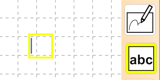
ツールバーの「abc」ボタンをタップします。
Tap abc button on Tool Bar.
Pocket Note


その後、文章を入力する場所をタップします。
文章を入力するための黄色い枠が表示されますので、文章を入力します。
Tap place to input the sentence.
A frame is displayed and input sentence.
Pocket Note


操作ボタンの「カラー」ボタンをタップすると、文字の色を変更することができます。
Tap "Color" button when you want to change sentence's color.
Pocket Note

作成した文章は次の方法で場所を移動させることができます。
If you move sentence block, do the following.

 (1).文章をタップします
      Tap sentence block.

 (2).黄色い枠が表示されたのを確認したら、ドラッグ操作で移動します。
      Drag sentence block after seeing that the frame of sentence block is displayed.
Pocket Note

 文章を入力する枠の大きさは次の方法で変えることができます。
If you change width and height of sentence block, do the following.

(1).文章をタップすると黄色い枠が表示されると同時に操作ボタンが表示されます。
     Tap sentence block. Frame and operation buttons are displayed.

(2).操作ボタンの「横幅拡大」ボタンをタップすると横幅が拡大します。
     Tap the width up button and width of sentence block become increasing.
Pocket Note


(3).操作ボタンの「横幅縮小」ボタンをタップすると横幅が縮小します。
     Tap the width down button and width of sentence block become decreasing.
Pocket Note

(4).操作ボタンの「高さ拡大」ボタンをタップすると高さが拡大します。
    Tap the height up button and height of sentence block become increasing.
Pocket Note

(5).操作ボタンの「高さ縮小」ボタンをタップすると高さが縮小します。
     Tap the height down button and height of sentence block become decreasing.
Pocket Note

文章が他の文章や写真、線、図形、地図と重なっている時は、次の方法で前面もしくは背面に移動させることができます。
If sentence block piles up other sentence blocks, lines, diagrams, and map, do the following and you can move sentence block to the front or back.

(1).文章をタップすると黄色い枠が表示されると同時に操作ボタンが表示されます。
     Tap sentence block. Frame and operation buttons are displayed.

(2).操作ボタンの「前面へ移動」ボタンをタップすると選択している文章が前面に移動します。
     Tap to front button and sentence block moves to the front.
Pocket Note


(3).操作ボタンの「背面へ移動」ボタンをタップすると選択している文章が背面に移動します。
     Tap to back button and sentence block moves to the back.
Pocket Note


[関連記事(Articles)]
[Pocket Note]How to handwrite(手書き入力の方法)

にほんブログ村 ライフスタイルブログ クリエイティブライフへ
にほんブログ村

クリエイティブライフ ブログランキングへ